Email a Posting
It's easy to email your postings to multiple recipients with just a few clicks.
Here's how:
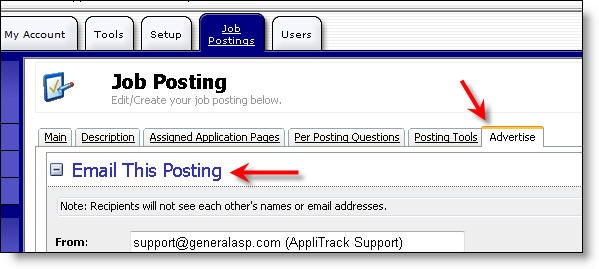
1) Open any Job Posting.
2) Expand the Email This Posting section.
3) Fill out the email form and click Send.
1) The "from" address is the reply-to for the sent emails. 2) The "To" field can be a comma or semicolon delimited list of addresses (i.e. career@collegeA.edu; jobs@collegeB.edu; etc.).
Modify the 3) subject and 4) body to suit your preference. The subject defaults to the posting's title and organization title. The body defaults to the same information seen on the public job board (the description, dates, location, etc.).
When ready, click the 5) Send Email button. Note that separate emails are sent so recipients will not see each other's names or addresses.